Devices
See which devices are connected through the GSA client and their activity.
What is shown here?
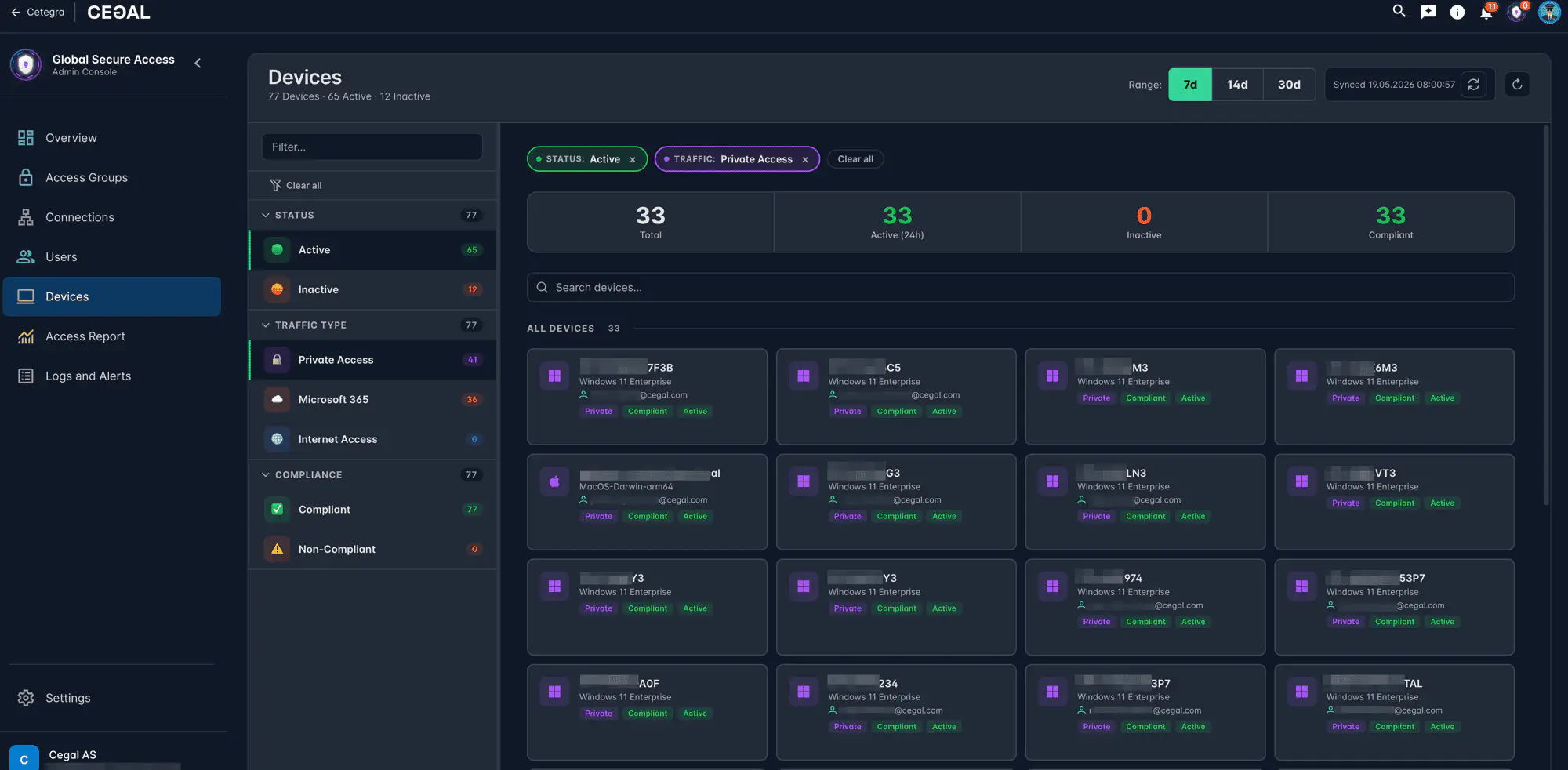
The Devices page shows all devices that have connected to your organization through the GSA client.
At the top you get a summary of the current state:
| Metric | What it shows |
|---|---|
| Active | Devices currently active |
| Active-Direct | Devices connected via direct routing |
| Devices | Total device count |
| Compliant | Devices meeting Intune compliance requirements |
Use the filter panel on the left to narrow the list by Status (Active / Inactive), Traffic type (Private Access, Microsoft 365, Internet Access), or Compliance (Compliant / Non-Compliant). Each device card shows the hostname, traffic type, and compliance status.
Device detail view
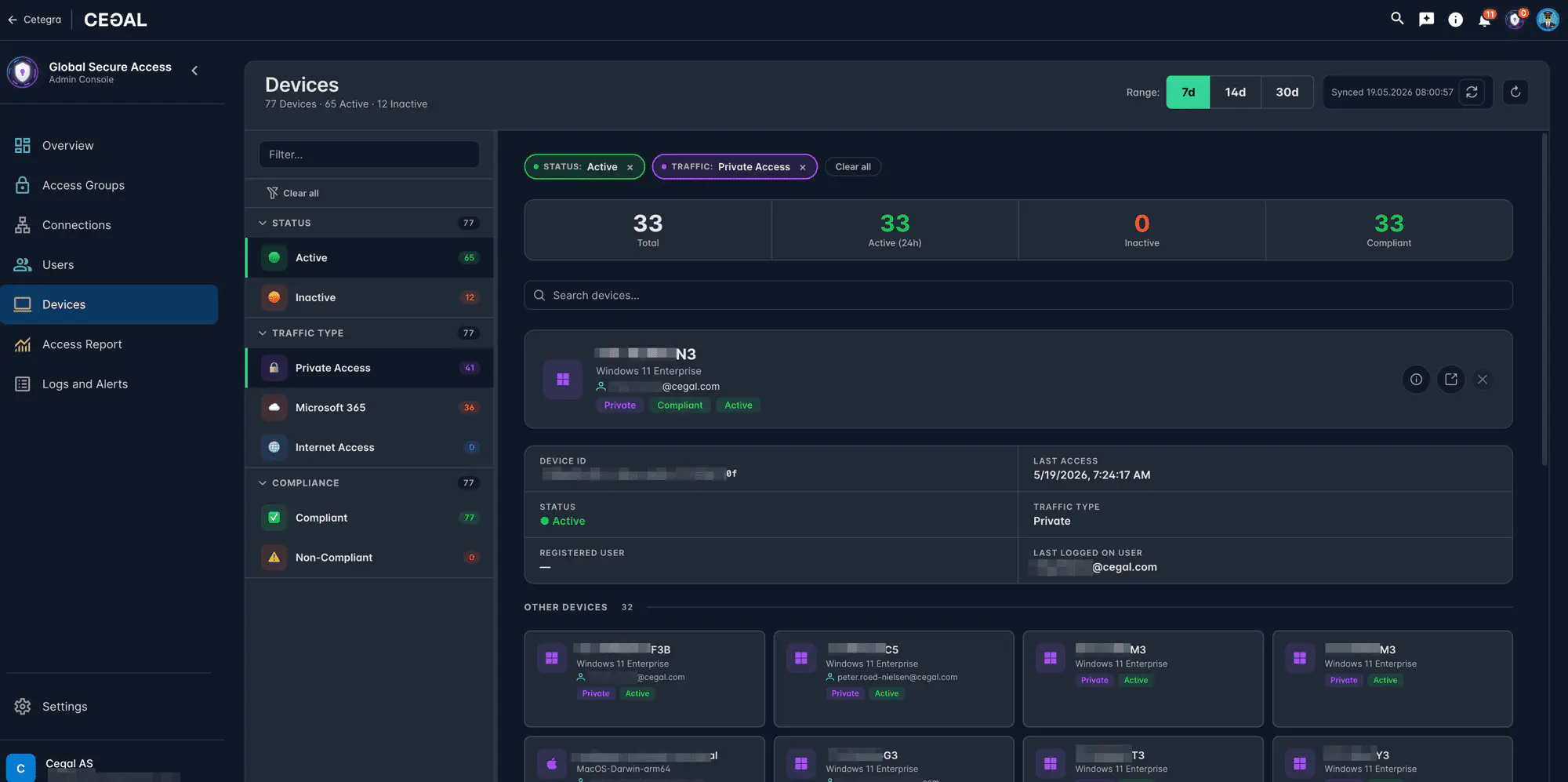
Click a device card to expand it inline. The expanded view shows:
| Field | Description |
|---|---|
| Source IP | The public IP address the device last connected from |
| Status | Active or inactive |
| Last access | Timestamp of the most recent connection |
| Traffic type | The GSA traffic category (Private Access, Microsoft 365, etc.) |
| Registered user | The Entra user the device is registered to |
| Last logged-on user | The user who most recently logged on to the device |
Using device information for troubleshooting
If a user reports connectivity issues from a specific machine, the Devices page can help you:
- Confirm the device is connecting — search for the device name. If it doesn’t appear or shows as inactive, the GSA client may not be running on that machine.
- Check the client version — an outdated client version may cause connectivity issues. Report this to your Cetegra administrator.
- Check the registered and last logged-on user — open the device card to confirm the correct user is associated with the device.
For investigation of blocked traffic for a specific device, go to Logs → Traffic and filter by the device name or user.