Settings
View connector health and conditional access tier configuration.
The Settings section gives you a read-only view of the underlying infrastructure that Cetegra Connect depends on: the on-premises connectors that route traffic, and the conditional access policies that enforce authentication requirements.
As a Global Secure Access Viewer, you can view the status and configuration of both — but you cannot make changes. Contact your Cetegra administrator if anything needs to be updated.
Connectors
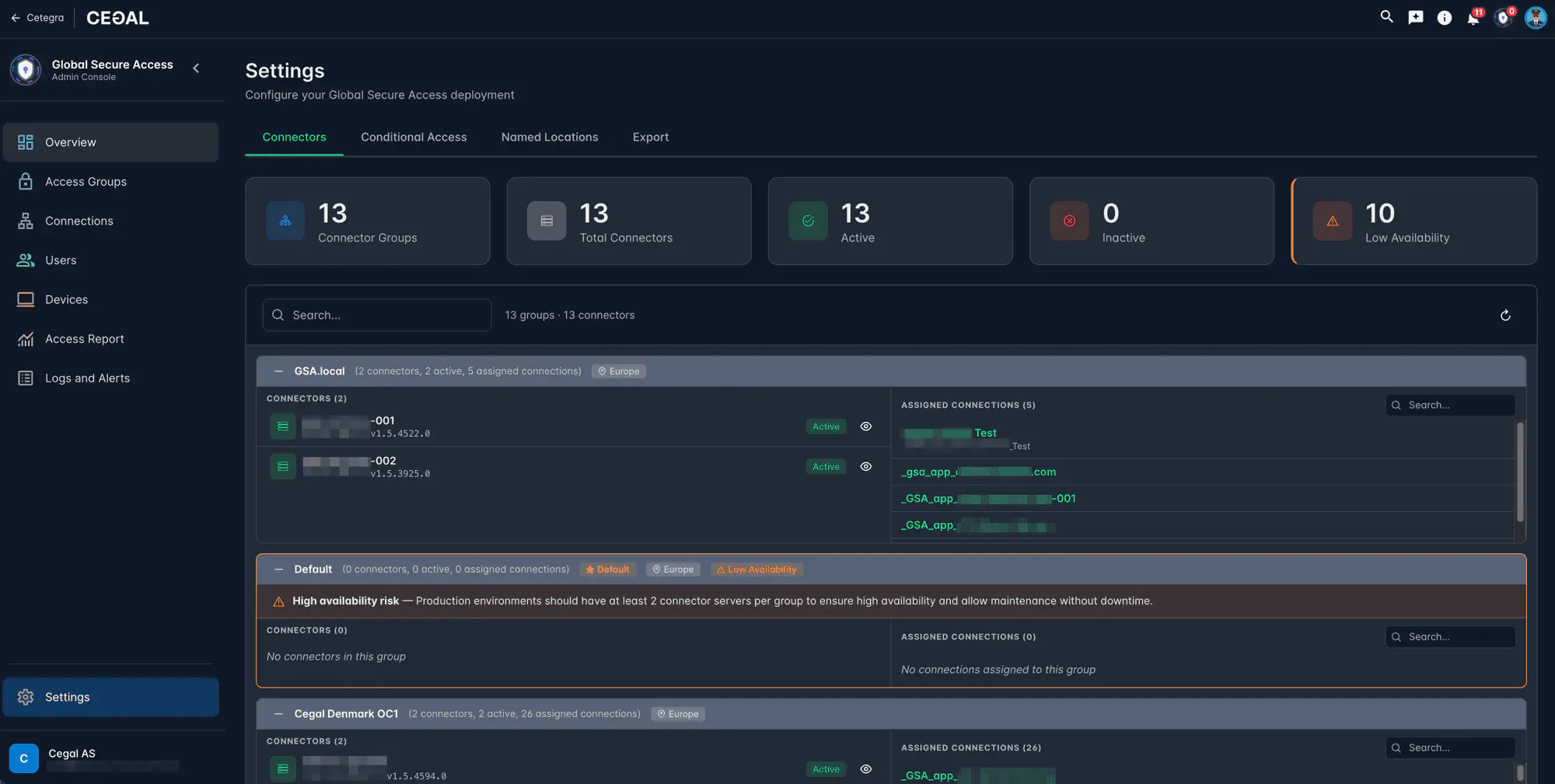
Connectors are lightweight Windows services installed on servers in your internal network. They establish outbound connections to Microsoft infrastructure and route GSA client traffic to the internal resources defined in your Connections.
The summary bar at the top shows organization-wide connector health at a glance:
| Metric | Meaning |
|---|---|
| Connector Groups | Total number of connector groups |
| Total Connectors | Total connectors across all groups |
| Active | Connectors currently healthy and reachable |
| Inactive | Connectors not responding |
| Low Availability | Groups with only one active connector (no redundancy) |
Below the summary, connector groups are listed with their assigned connections and the connectors inside each group. Each connector shows its name, status, and the connections it serves.
What to watch for
- Inactive connector — the connector service may have stopped or the server is unreachable. Report to your Cetegra administrator.
- All connectors inactive in a group — users will lose access to any application assigned to this group. Escalate immediately.
- Low Availability group — only one active connector, meaning there is no redundancy. Not critical, but worth flagging to your Cetegra administrator.
Conditional Access
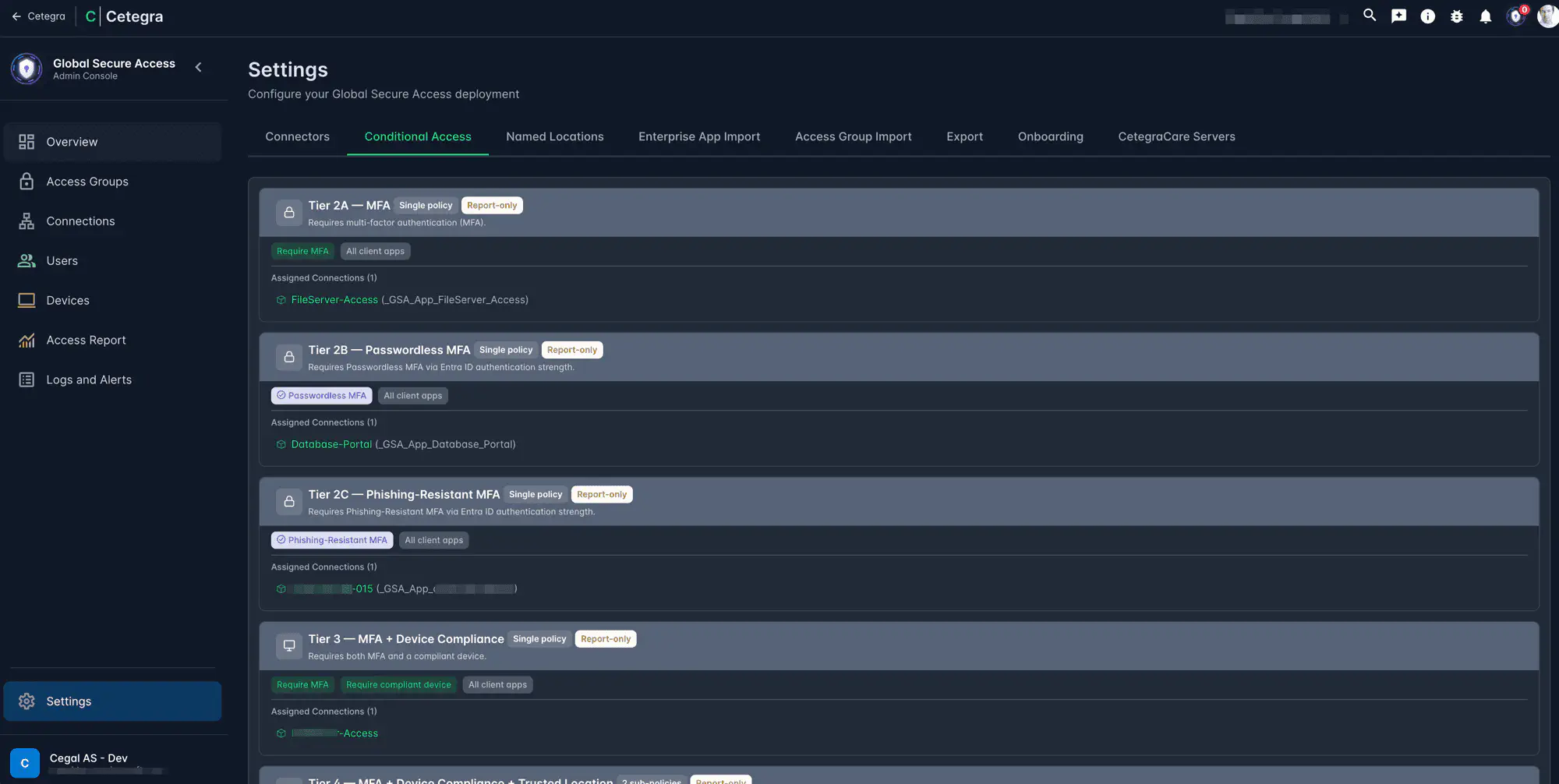
Conditional access policies enforce authentication and device requirements before a user’s GSA client can reach an application. Cetegra Connect uses a tiered model — each tier adds progressively stronger requirements.
Each tier is shown as a card with its policy status, the grant controls it enforces, and which connections are assigned to it.
Tier reference
| Tier | Name | Requirements |
|---|---|---|
| Tier 1 | Minimal | GSA client + group membership only |
| Tier 2A | MFA | + Multi-factor authentication |
| Tier 2B | Passwordless MFA | + Passwordless MFA via Entra ID authentication strength |
| Tier 2C | Phishing-Resistant MFA | + Phishing-resistant MFA via Entra ID authentication strength |
| Tier 3 | MFA + Device Compliance | + Intune-compliant device |
| Tier 4 | MFA + Device Compliance + Trusted Location | + Trusted location or IP restriction |
Each Connection is assigned one tier. To see which tier an application uses, open the connection’s detail view.
Policy status
Each tier corresponds to an Entra conditional access policy. The status column shows whether the policy is:
| Status | Meaning |
|---|---|
| Enabled | Policy is active and enforcing requirements |
| Report-only | Policy is evaluating but not blocking — used during rollout |
| Disabled | Policy is not active — access requirements are not enforced |
If a policy shows Disabled or Report-only for a tier assigned to a sensitive application, report this to your Cetegra administrator.
Conditional access policies are created and maintained by Cetegra. Do not edit them directly in Microsoft Entra, as this may break the tier configuration.