Admin
Manage cluster configuration, scheduler connection details, cost settings, and software license mappings from the HPC Admin section.
The Admin section is available to users with the HPC Admin role. It is accessible from the left navigation panel under HPC → Admin.
Note: Software Mapping is currently available for Slurm clusters only and must be enabled via a feature flag. Contact Cegal to have this activated for your environment.
Cluster overview
The Admin page lists all HPC clusters configured for your environment. Each row shows the cluster name, location, scheduler type, discount percentage, and whether the cluster is enabled or set as the default.
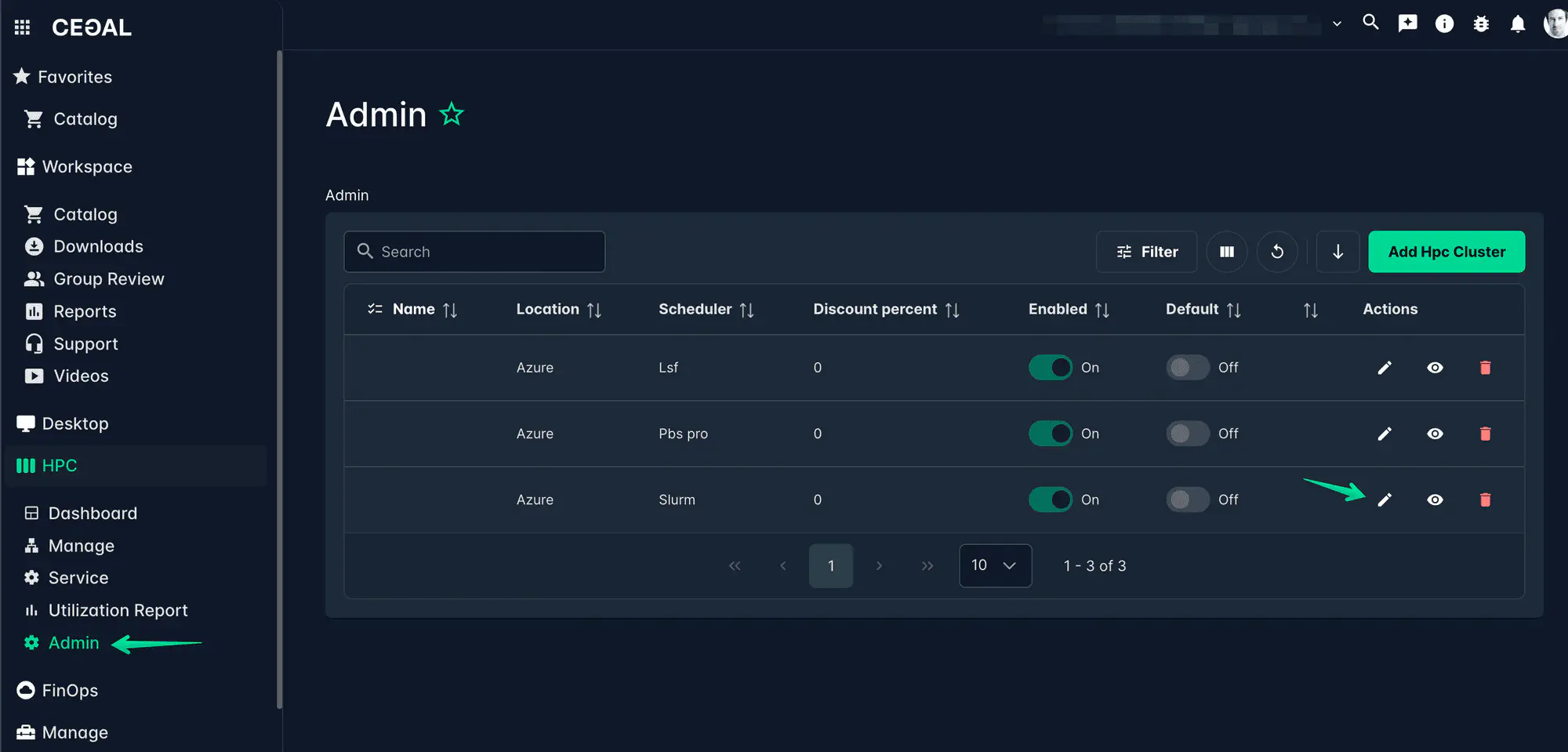
To configure a cluster, click the Edit (pencil) icon on the relevant row. The edit view has two tabs: General and Software Mapping.
General settings
The General tab contains the core configuration for a cluster — connection details, scheduler type, cost settings, and display options.
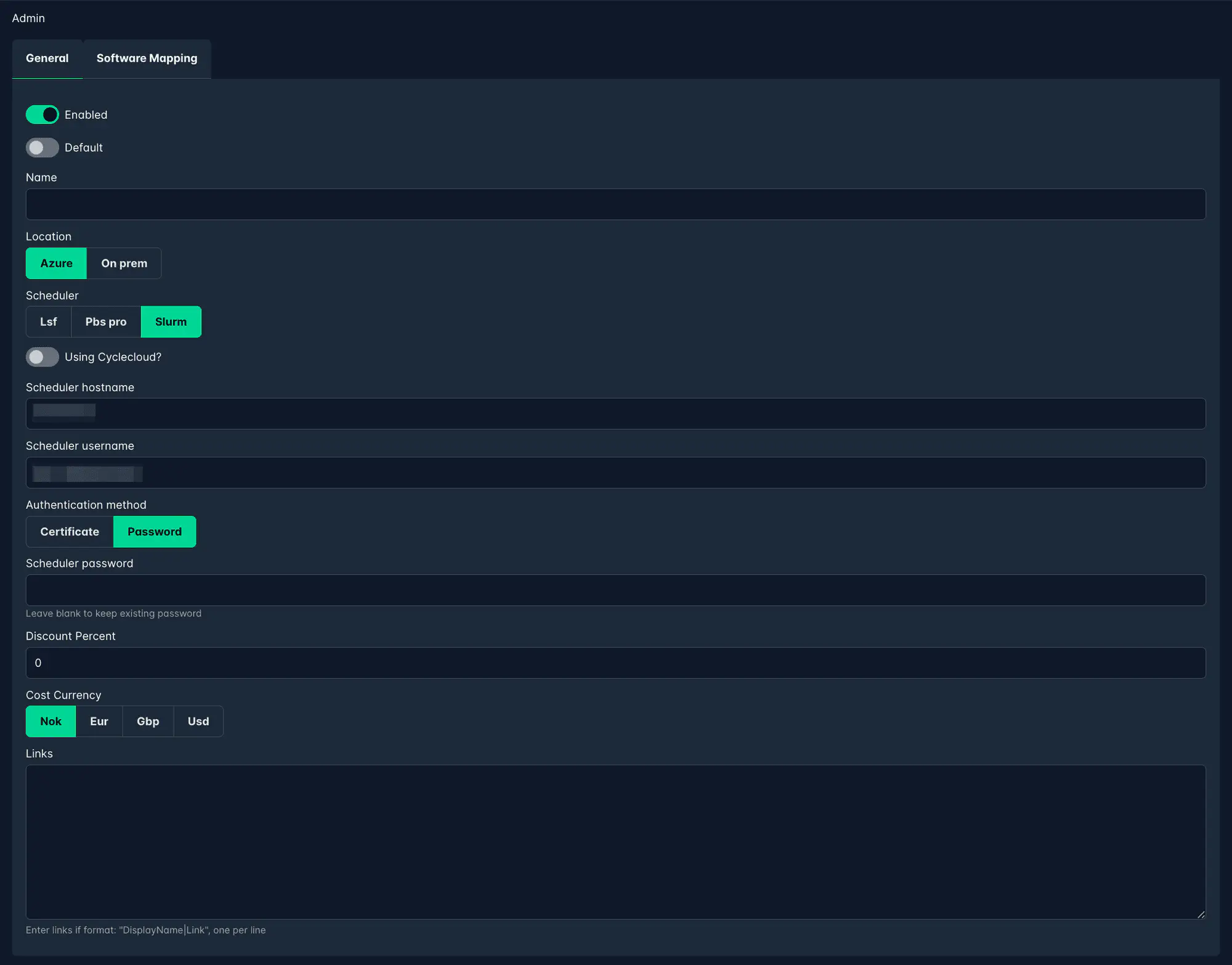
| Field | Description |
|---|---|
| Enabled | Whether this cluster is active and visible in Cetegra Workspace. Disable to hide a cluster without deleting it. |
| Default | Marks this cluster as the default selection in views that support a cluster picker. Only one cluster should be set as default. |
| Name | The display name for the cluster as shown in Cetegra Workspace. |
| Location | Where the cluster is hosted — Azure or On prem. |
| Scheduler | The job scheduler used by the cluster — LSF, PBS Pro, or Slurm. |
| Using Cyclecloud? | Enable if the cluster is managed via Azure CycleCloud. |
| Scheduler hostname | The hostname or IP address of the scheduler node. |
| Scheduler username | The username used to connect to the scheduler. |
| Authentication method | How Cetegra authenticates to the scheduler — Certificate or Password. |
| Scheduler password | The password for the scheduler connection (only shown when Password is selected). Leave blank to keep the existing password when editing. |
| Discount Percent | A percentage discount applied when calculating job costs, to align with any Azure reserved instance or negotiated pricing. |
| Cost Currency | The currency used for cost reporting — NOK, EUR, GBP, or USD. |
| Links | Optional links shown in the cluster context. Enter one per line in the format DisplayName|Link. |
Software Mapping (Slurm only)
Slurm clusters only. Software Mapping is not available for LSF or PBS Pro clusters. It also requires a feature flag to be enabled — contact Cegal if you do not see the Software Mapping tab on your cluster.
Software Mapping translates raw Slurm license strings into human-readable software names. When configured, these display names appear in the Software column of the job history table, giving users and managers meaningful visibility into which applications were used in each job.
Viewing mappings
In the cluster edit view, select the Software Mapping tab to see all configured mappings for that cluster.
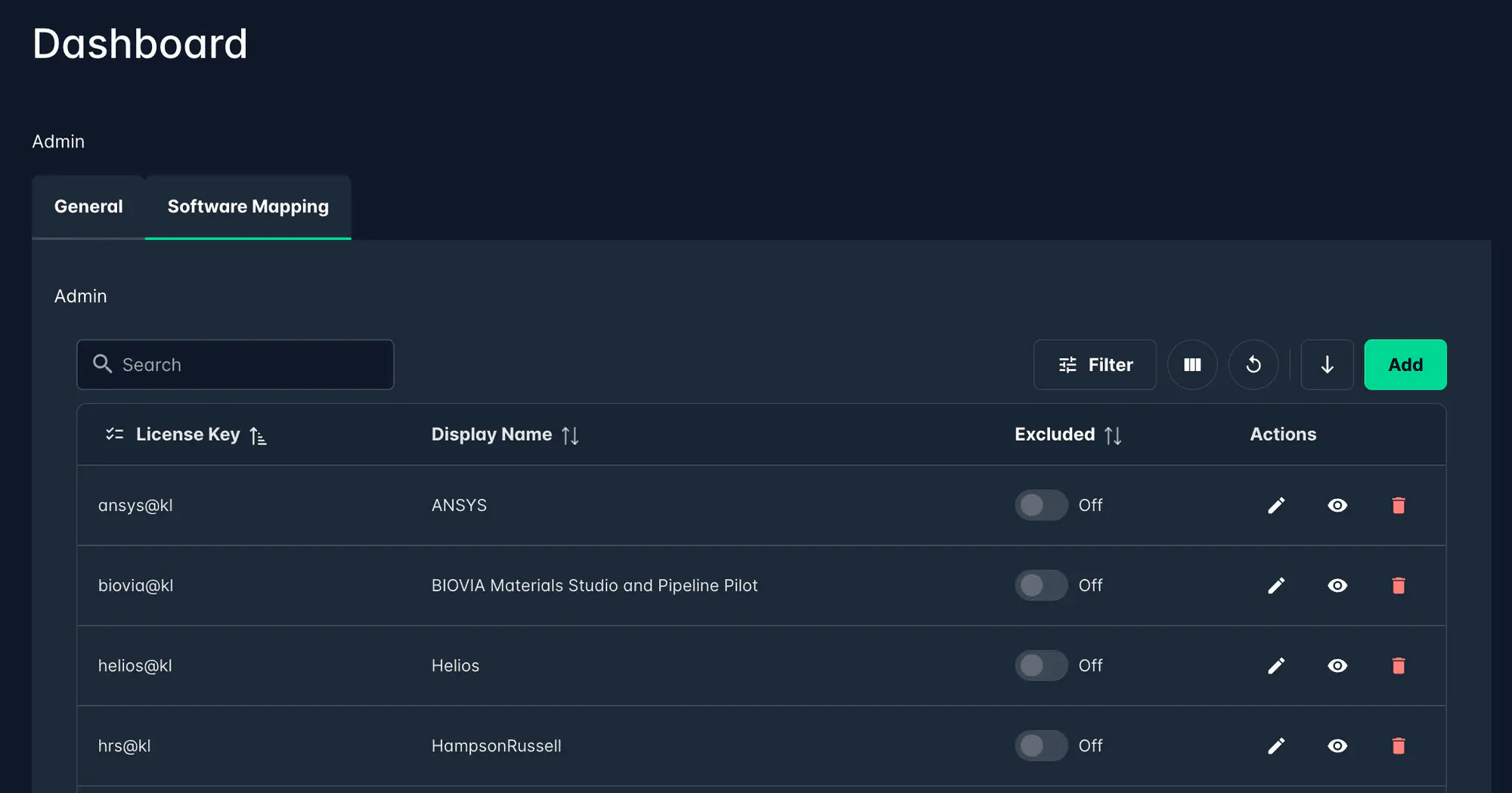
Each row shows:
| Column | Description |
|---|---|
| License Key | The raw Slurm license string (e.g. ansys@kl) |
| Display Name | The human-readable name shown in job history (e.g. ANSYS) |
| Excluded | When enabled, this license is excluded from software mapping — useful for licenses tracked via other mechanisms |
Adding a mapping
Click Add to open the mapping form.
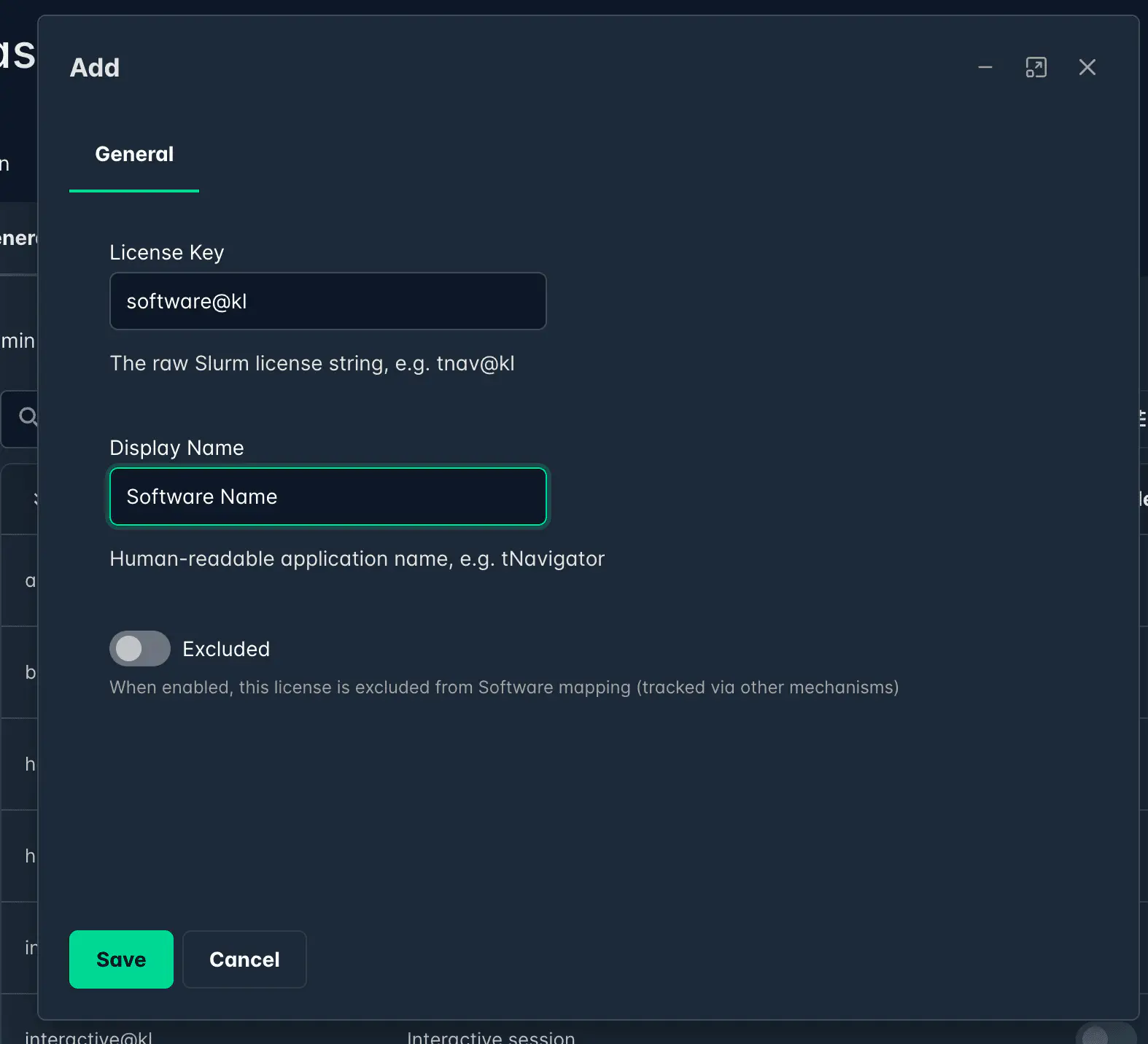
| Field | Description |
|---|---|
| License Key | The raw Slurm license string as it appears in the scheduler, e.g. tnav@kl |
| Display Name | The name to display in job history, e.g. tNavigator |
| Excluded | Toggle on to exclude this license from mapping (it will not appear in the Software column) |
Click Save to apply. The mapping takes effect immediately for new job history entries.
Editing and deleting mappings
Use the Edit icon to update an existing mapping, or the Delete icon to remove it. Deleting a mapping does not affect historical job records — only future entries will be affected.