Responsibility Insights
Overview
The Insights report provides a consolidated view of access governance health in Cetegra Workspace.
It helps you:
- Detect misconfigurations (inactive approvers, missing reviewers, overdue reviews)
- Understand who is responsible for what
- Track improvements over time
- Quickly identify what requires action
Note
The Insights report is read-only.
All fixes and changes are performed in Cetegra Workspace, using the links provided in the report.
Quick Start (2 minutes)
- Open the Insights report
- Start on the Dashboard
- Review:
- Total issues today
- Change vs last 7 days
- Which issue types dominate
- Click an issue or chart to filter
- Navigate to the relevant detailed page
- Use the URL column to open the correct configuration in Cetegra Workspace
Tip
A decreasing number of issues or a negative 7-day change indicates that your governance posture is improving.
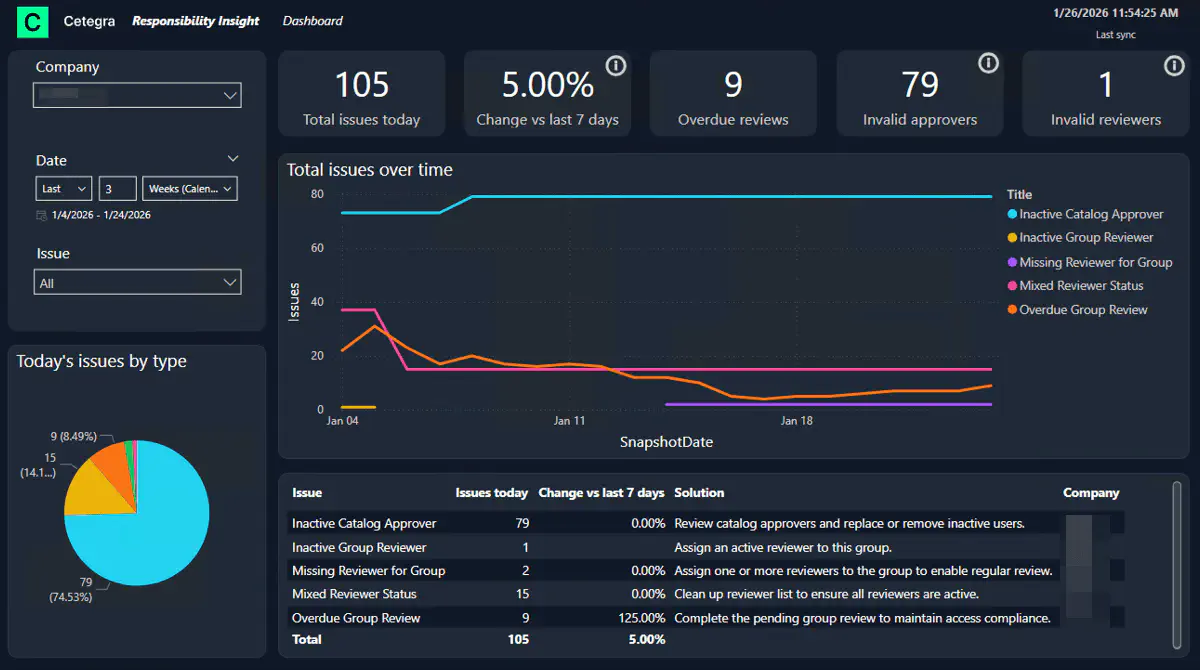
Dashboard – Governance at a Glance
Why this page matters
Use the Dashboard to:
- Understand your current access governance health
- See whether issues are improving or getting worse
- Decide which area needs attention first
Filters (left side)
- Company – You will only see your own company
- Date range – Controls how much history is shown in charts and tables
(for example, last 14, 30, or 90 days) - Issue type – Focus on a specific type of issue
Important
The date range filter affects what history you see, not how the 7-day change is calculated.
Issue Distribution (pie chart)
Shows how today’s issues are distributed by type.
Use this to quickly answer:
“What kind of problems do we mostly have right now?”
Key Metrics (cards)
| Metric | What it shows |
|---|---|
| Total issues today | Total number of governance issues right now |
| Change vs last 7 days | Difference compared to the same day 7 days ago |
| Overdue reviews | Reviews past their due date |
| Invalid approvers | Disabled or deleted catalog approvers |
| Invalid reviewers | Disabled or deleted group or user reviewers |
About “Change vs last 7 days”
Note
- Compares today with the same day 7 days ago
- Does not change when you adjust the date range filter
- Intended as a health indicator, not a historical comparison
This makes the number predictable and easy to interpret week over week.
Issues Over Time (line chart)
Shows how the total number of issues changes over time.
- The date range filter controls how much history is visible
- The chart highlights trends, not just today’s status
Tip
Use this chart to validate cleanup efforts and to demonstrate measurable improvement over time.
Issue Table (bottom)
| Column | Description |
|---|---|
| Issue | Issue type |
| Issues today | Current number |
| Change vs 7 days ago | Difference compared to the same day last week |
| Solution | Recommended action |
| Company | Your company |
Note
This table represents your prioritized action list.
User Responsibility
Why this page matters
Use this page to:
- Understand who is responsible for approvals and reviews
- Detect responsibilities assigned to inactive users
- Safely reassign responsibilities when users leave or change roles
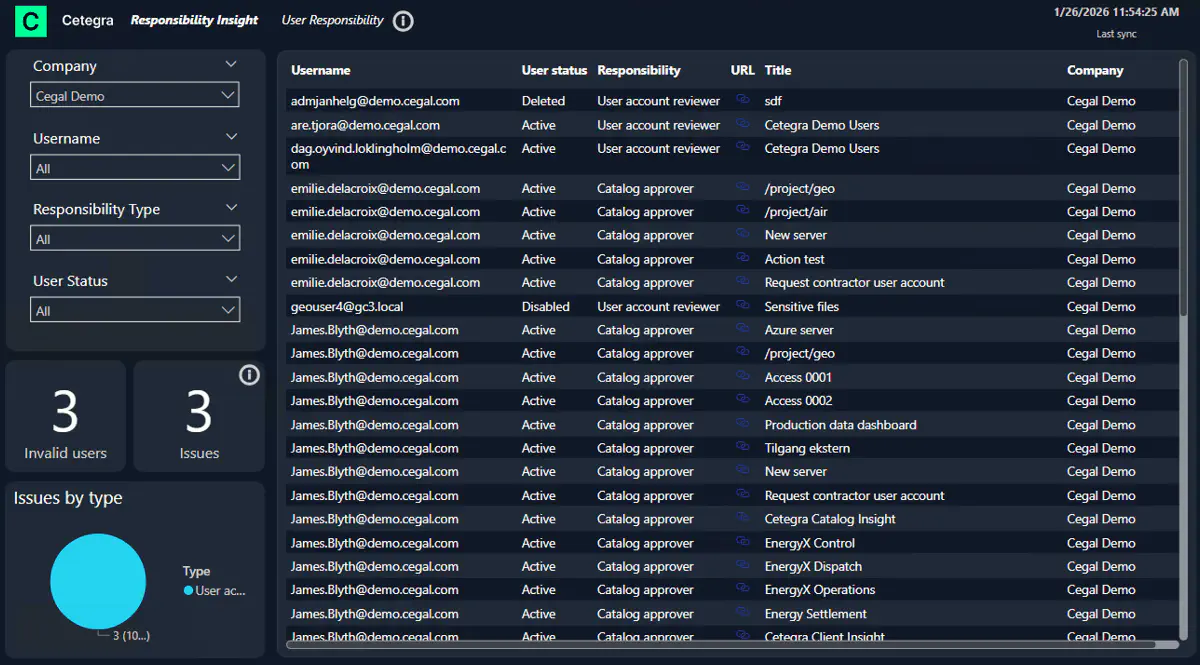
This page shows all users with responsibility in Cetegra.
Responsibility types
- Catalog approver – Approves catalog orders
- Group reviewer – Reviews group members on a schedule
- User account reviewer – Reviews user accounts based on rules
Filters
- Company
- Username
- Responsibility type
- User status (Active, Disabled, Deleted)
Metrics
- Invalid users – Inactive users with responsibilities
- Issues – Responsibility configurations needing attention
Table
| Column | Description |
|---|---|
| Username | Responsible user |
| User status | Active / Disabled / Deleted |
| Responsibility | Responsibility type |
| URL | Link to fix configuration |
| Title | Review, group, or product |
| Company | Your company |
Scenario: A user is leaving the company
Tip
Use this page before disabling or deleting a user account.
- Filter by Username
- Review all listed responsibilities
- Use the URL column to reassign responsibility
- Disable or delete the user with confidence
Group Review
Why this page matters
Use this page to:
- Ensure required group reviews are completed on time
- Detect missing or invalid reviewers
- Maintain compliance with access review requirements
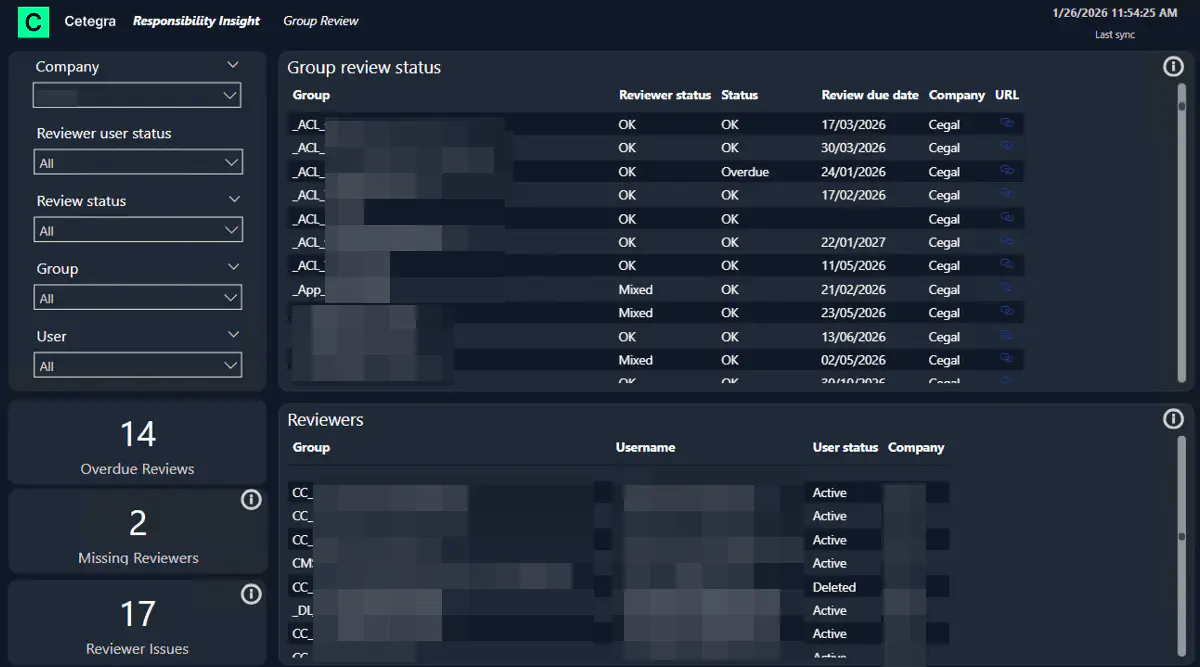
The Group Review feature allows groups to require periodic review of members.
Configuration reference
The documentation below explains how to configure Group Review in Cetegra Workspace.
It does not explain Insights logic, issue definitions, or how issues are evaluated.
https://docs.cetegra.cegal.com/docs/workspace/manager/group-review/
Filters
- Company
- Reviewer status: OK, Issue, Missing, Mixed
- Review status: Overdue / OK
- Group
- User
Metrics
- Overdue reviews
- Missing reviewers
- Reviewer issues
(distinct groups with Issue, Missing, or Mixed)
Tables
Group Review Status
| Column | Description |
|---|---|
| Group | Group name |
| Reviewer status | OK, Missing, Issue, Mixed |
| Status | Overdue or OK |
| Review due date | When the review became overdue |
| URL | Link to group configuration |
Reviewers
Filtered by selected group:
| Group | Username | User status | Company |
Scenario: Find all overdue group reviews
- Set Review status = Overdue
- Sort by Review due date
- Use the URL to complete or fix the review
Group Limits
Why this page matters
Use this page to:
- Prevent groups from silently reaching capacity
- Detect groups without member limits
- Plan cleanup or limit adjustments before access is blocked
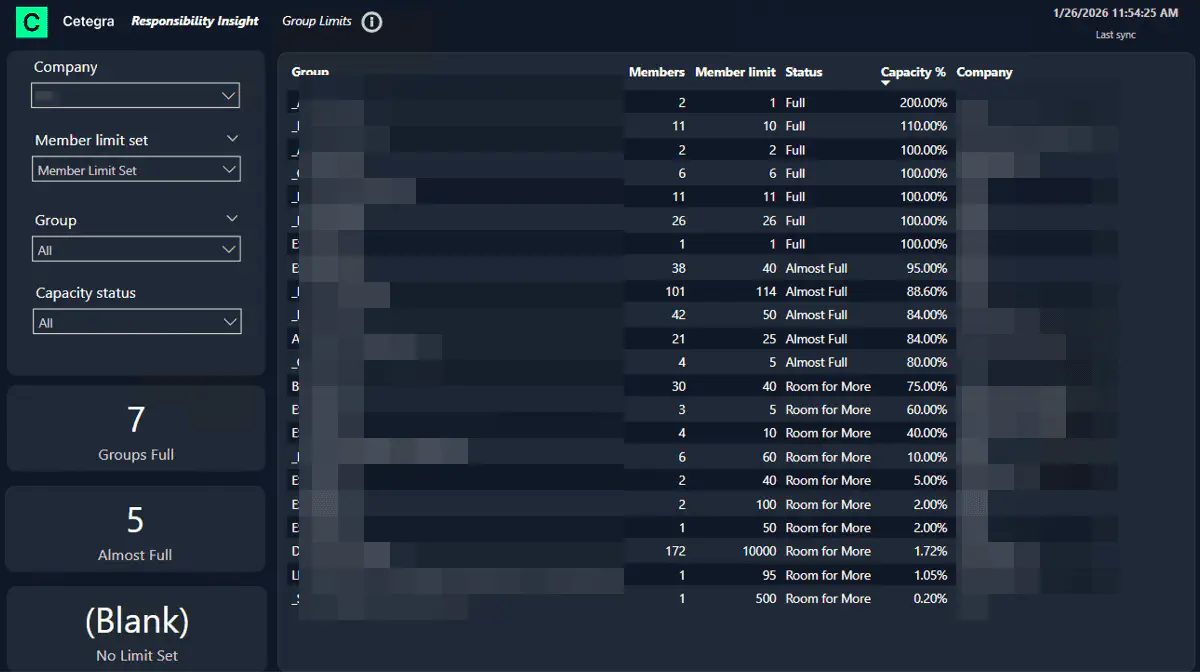
Each group can have a maximum number of members.
Configuration reference
The documentation below explains how to configure group member limits.
It does not explain how limits are evaluated or flagged as issues in the Insights report.
https://docs.cetegra.cegal.com/docs/workspace/manager/groups/
Filters
- Company
- Member limit set
- Group
- Capacity status
Capacity status meanings:
- Full – 100% or more
- Almost full – More than 80%
- Room for more – Less than 80%
- No limit set
- Empty
Metrics
- Groups full
- Almost full
- No limit set
Table
| Column | Description |
|---|---|
| Group | Group name |
| Members | Current members |
| Member limit | Max allowed |
| Capacity % | Utilization percentage |
| Company | Your company |
Scenario: Identify groups close to capacity
Tip
Address “Almost full” groups before they become blocking issues.
- Filter Capacity status = Almost full
- Review capacity %
- Adjust limits or clean up memberships
Catalog Approvers
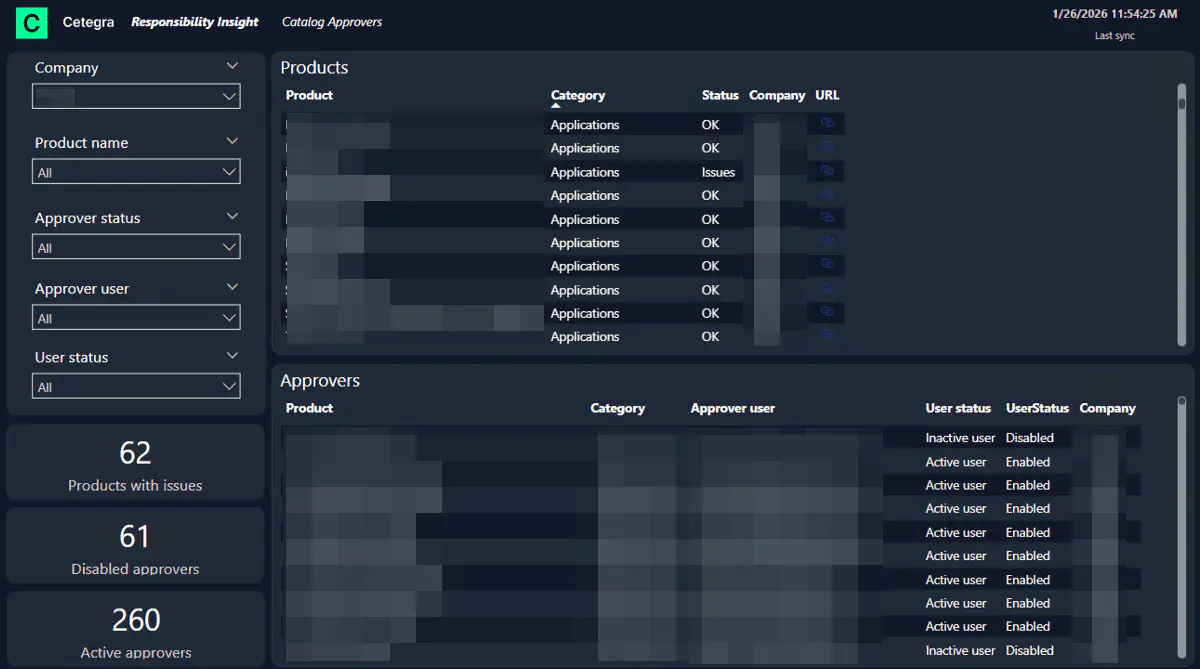
Why this page matters
Use this page to:
- Ensure catalog approvals can be completed
- Detect disabled or deleted approvers
- Avoid broken request and approval workflows
Catalog products can have one or more approvers and approval steps.
Filters
- Company
- Product name
- Approver status (OK / Issues)
- Approver user
- User status
Metrics
- Products with issues
- Disabled approvers
- Active approvers
Tables
Products
| Product | Category | Status | URL |
|---|
Approvers
| Product | Category | Approver user | User status | Company |
Scenario: Find products with invalid approvers
- Set Approver status = Issues
- Review affected products
- Use the URL to update approvers
Why the Insights Report Matters
The Insights report enables you to:
- Reduce access and approval risk
- Maintain compliance
- Prove continuous improvement over time
- Avoid broken approval and review processes
Tip
Use Insights proactively — not only when something breaks.
Recommended Usage
- Review the Dashboard weekly
- Use the 7-day change as a health indicator
- Use detailed pages to resolve issues
- Track trends to confirm improvements
- Combine Insights with regular access reviews