Account settings
Update your profile, language, theme, and control how your usage data is collected.
Navigating Account Settings in Cetegra Workspace
Cetegra Workspace’s Account Settings provides users with a central hub to manage and customize their profiles. This section allows users to update their personal information, profile picture, language preferences, and theme selection. Additionally, users can view their group memberships, which can be useful for verifying access permissions.
Note that the Password reset functionality has been removed from Cetegra Workspace. Users can reset their passwords through the Microsoft services. Read more here.
To access Account Settings, click on the Profile menu located at the top right corner of your screen and select Account settings.
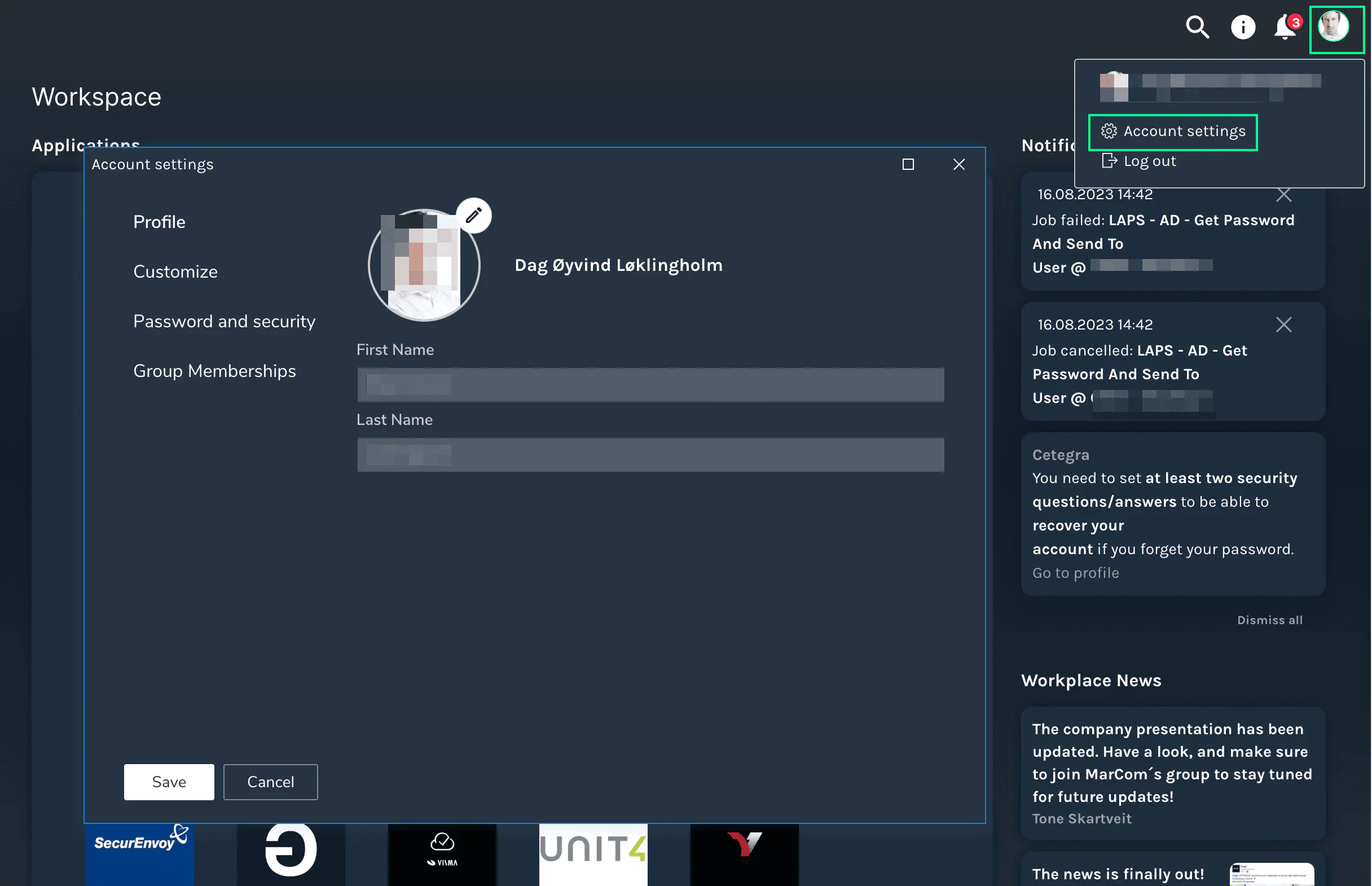
Profile Management
This section showcases pertinent details about your user account, such as your name and associated profile picture.
Updating Your Profile Picture
- To change your profile image, click on the Pencil icon.
- Ensure your selected image does not exceed 1MB in size.
- Once selected, this image will synchronize with your Microsoft account, reflecting across Microsoft services like Outlook, Teams, and more.
- After choosing the desired image, click “Open” and finalize your choice by pressing Save.
Personalizing Your Workspace
Within the Customize area, users have the ability to modify the visual and linguistic aspects of Cetegra Workspace.
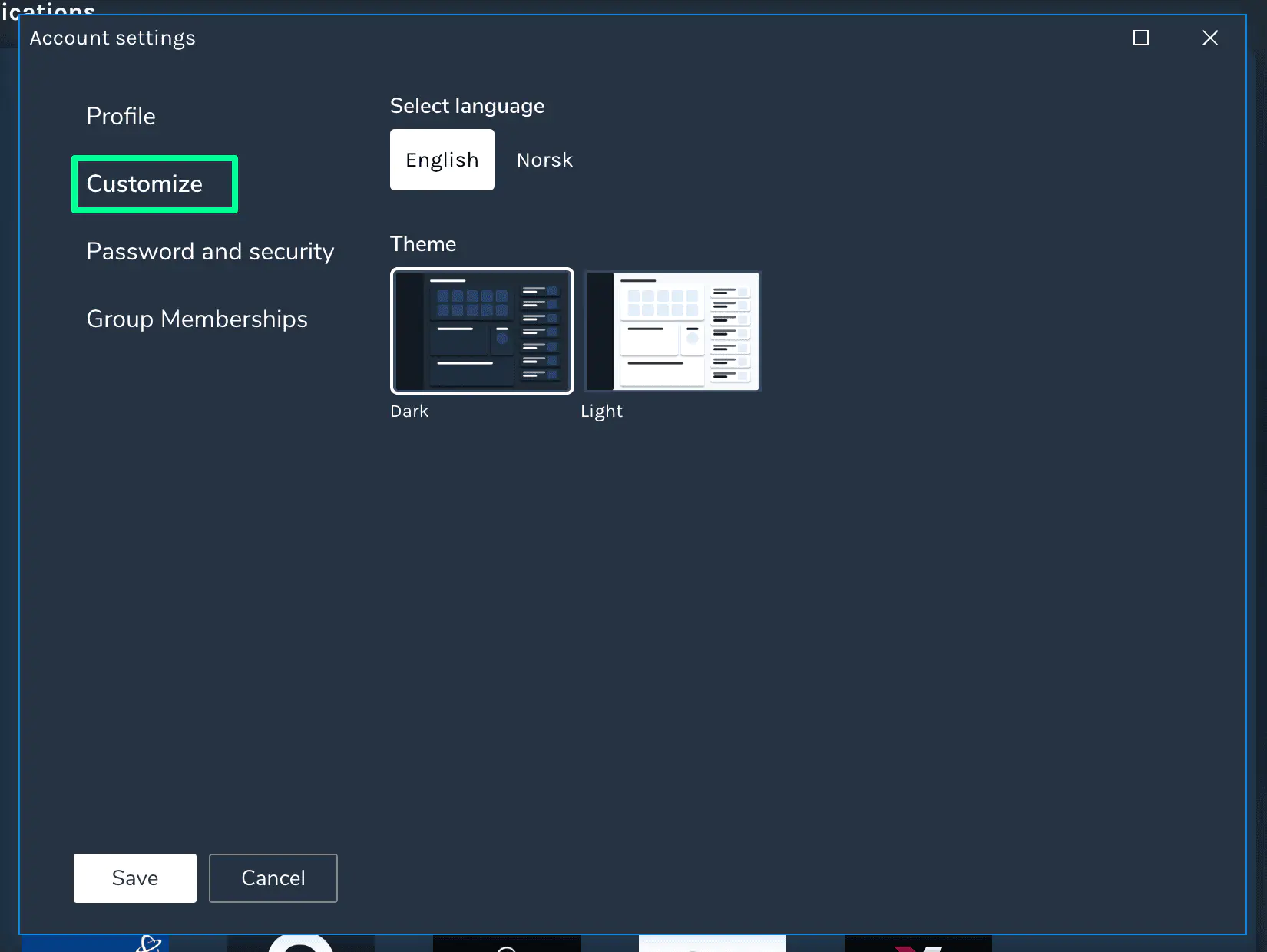
Language Preference
- Choose your desired language by clicking on the respective language button.
- Confirm your choice by pressing Save.
Theme Selection
- Define the look of your Cetegra Workspace by selecting your preferred color mode.
- The theme will take effect immediately; click Save to retain your chosen theme.
Group Memberships Overview
Through the Group memberships section, users can inspect and confirm their affiliations with various Active Directory Groups.
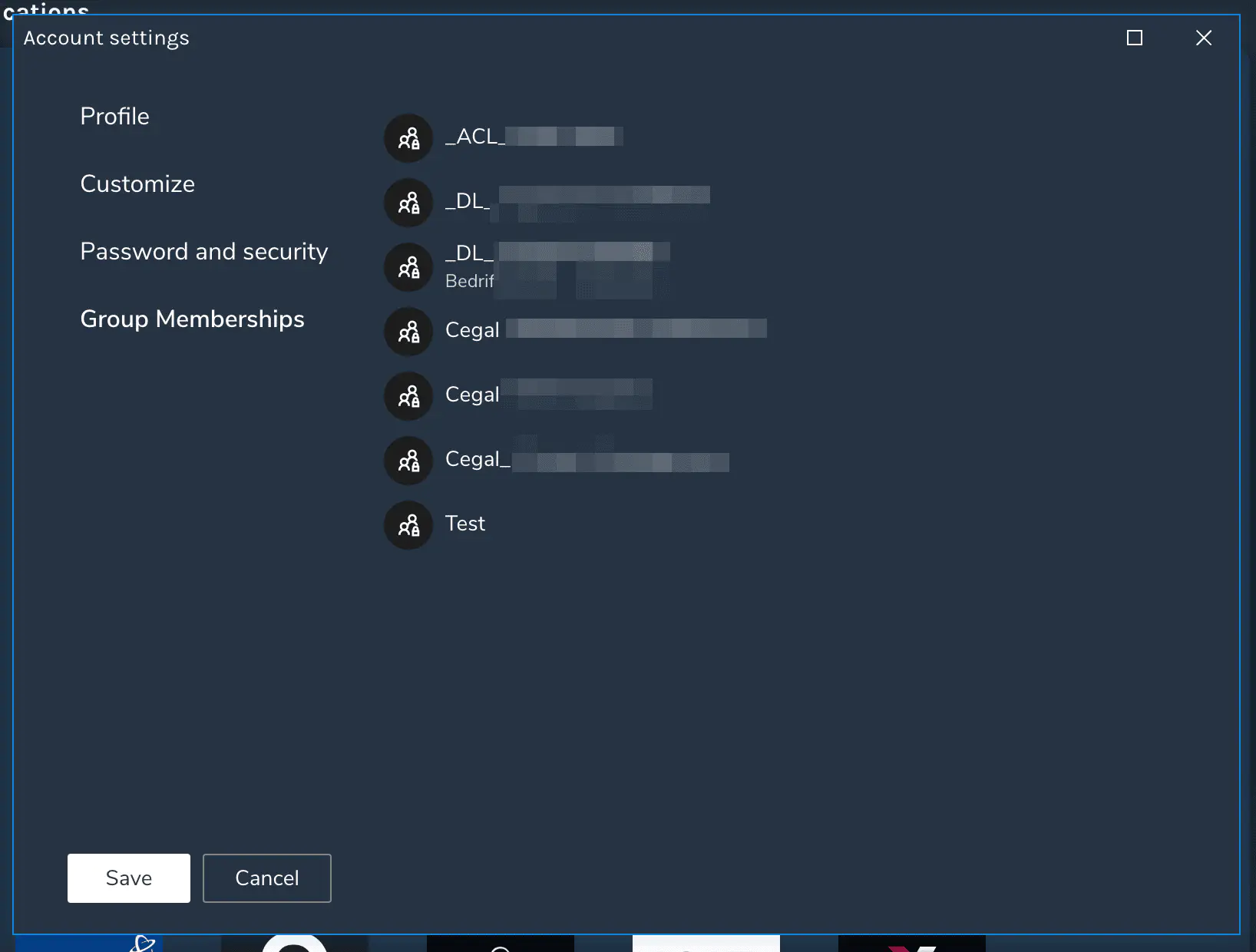
This can be instrumental when verifying access permissions or diagnosing access-related issues.
Note: The Group memberships display is strictly for viewing purposes; users cannot alter any data within this section.
Usage Analytics
The Usage analytics section lets you control whether Cetegra Workspace collects anonymous usage data about how you use the platform.
This section is only visible if your organization has enabled usage analytics. Contact your IT administrator if you do not see it.
What is collected
If you give consent, Cetegra will collect information such as:
- Which features and pages you visit
- Your role or persona in Cetegra (e.g. end user, IT admin)
- Your company name
A pseudonymous identifier — a generated number with no link to your name or username, and not visible to administrators — is also included to help analyze usage patterns across sessions. This identifier is not your actual user account ID and cannot be used to identify you directly.
If you decline, no usage data is collected at all.
What it is used for
Usage data is used exclusively by Cegal to understand how the platform is being used and to prioritize improvements. It is never shared with third parties or used for advertising purposes.
How to change your consent
- Open Account Settings via the profile menu at the top right.
- Scroll to the Usage analytics section.
- Toggle consent on or off.
- Click Save.
Your consent choice takes effect from your next page load. If you change your setting mid-session, refresh the page to apply the change immediately.
Withdrawing consent
You can withdraw your consent at any time by toggling usage analytics off in Account Settings. From that point forward, no new usage data will be collected. Previously collected data will remain, as it was collected lawfully while you had consented.
If you would like previously collected data to be removed, you can submit a formal erasure request — see below.
Requesting deletion of your data
You have the right to request that Cegal removes the usage data we have collected about you. To do so, contact Cegal through your organization’s service desk or your Cegal contact person and submit a data erasure request. We will anonymize all usage events associated with your account, meaning the link between the events and your identity will be permanently removed.
For more details, see the Privacy Policy and Cookie Policy.