Group review
Group audit functionality.
The Access Manager role is needed for group review.
How to use
For group reviewers.
A user who is set as a Group Reviewer for one or several groups will be able to access these groups from, Workspace -> Group Review.
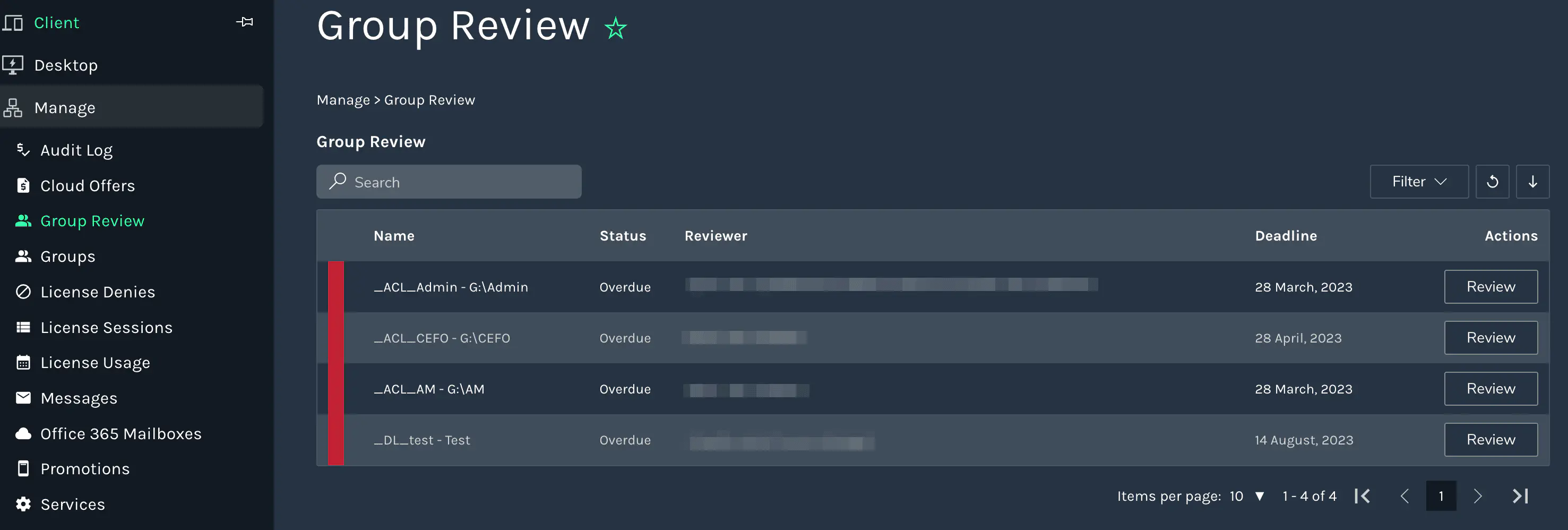
In the review view, all groups the user is a reviewer for will be listed together with information about the revision state of the group.
When clicking “Review”, the following tabs will be available:
- Users – Shows a list of current members of the group, possible to add/remove.
- Groups – Shows a list of groups with membership, possible to add/remove.
- Membership Changes – Shows changes done to membership since the last review.
- Review History – Shows past revisions with dates
- Group Audit – Shows all changes done to the group
Looking over the members and past changes the reviewer can then approve the group.
A new review will be triggered based on the revision interval set on the group by the administrator.
How to set up
Setting up on group:
Manage -> Groups -> Edit (on the group) -> Advanced
Click the Enable user review checkbox.
The default setup looks like this:
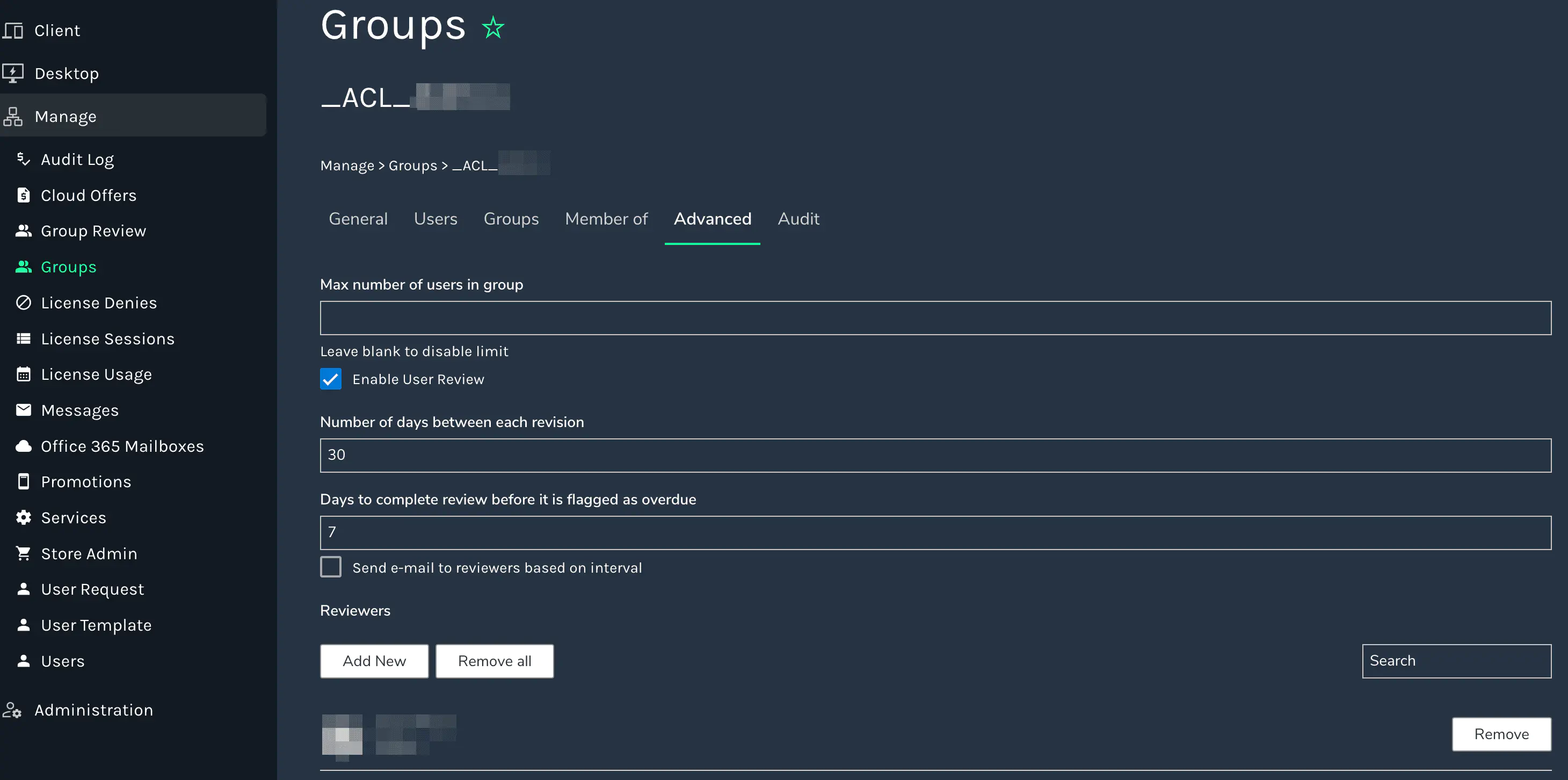
Number of days between each revision
Set how often the group should be revised.Days to complete review before it is flagged as overdue
If not complete within the time mentioned above, after how many days should it be flagged as overdue?Send e-mails to reviewers based on interval
Sends a reminder by mail. If not checked, the pending reviews will only show when logged into the Cegal Cloud Portal.
Contents of the email being sent can be changed:
Administration -> Settings -> Message contents
Edit the “Group review reminder e-mail” (This should usually not be necessary)
Configure notification when missing reviewer(s)
When using the Access Manager role, it is possible to set up email notifications if a group (with group review enabled) is missing a reviewer.
This is configured here:
Administration -> Settings -> Settings
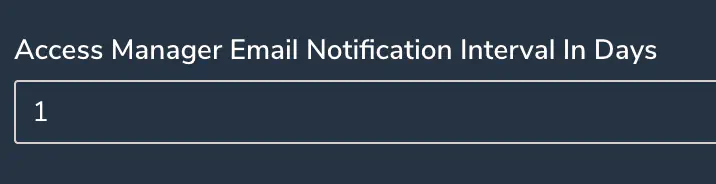
“Access Manager Email Notification on Missing Group Reviewer” “Access Manager Email Notification Interval In Days” – Set number of days
Waitlist visibility in Group Review
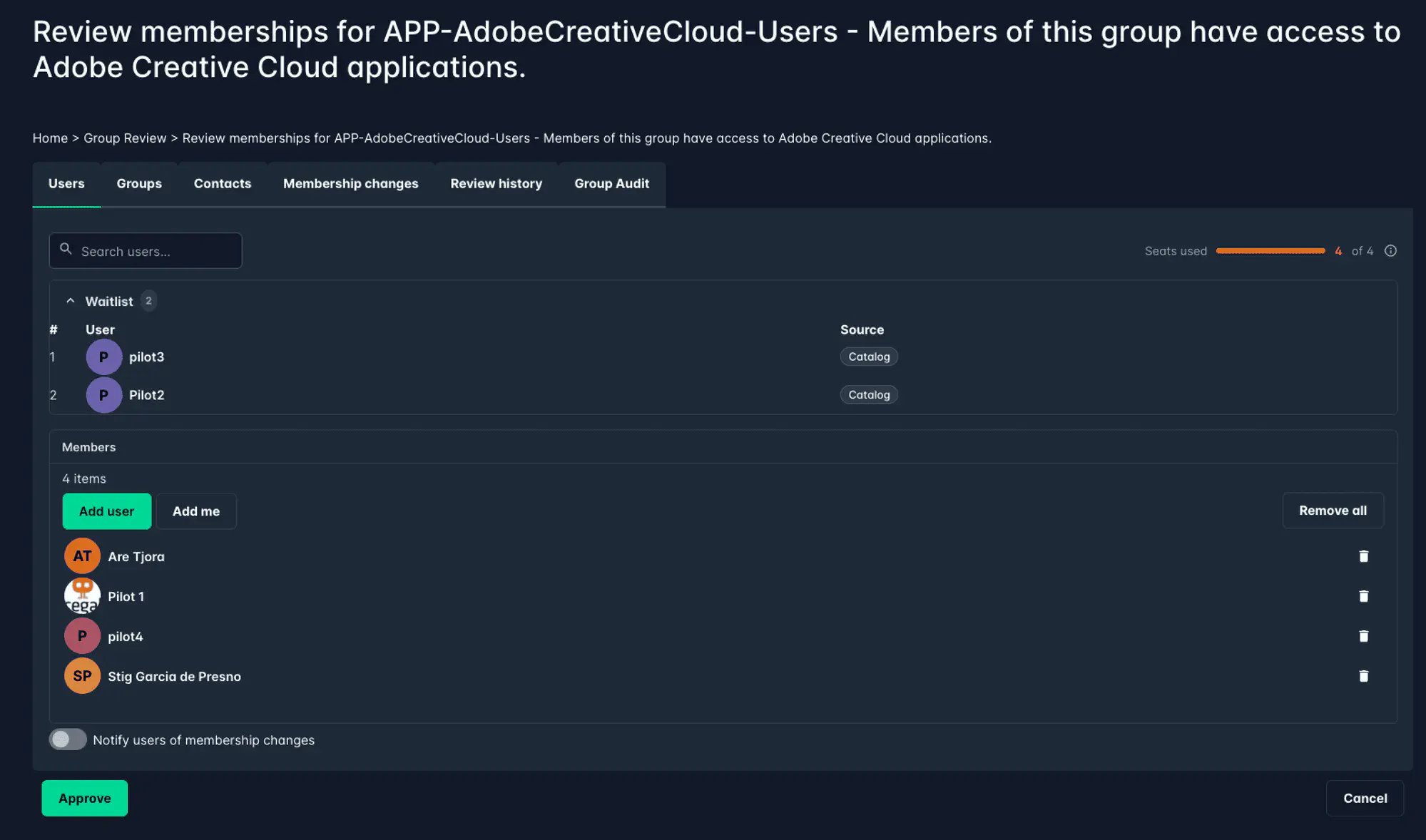
If a group has the waitlist feature enabled and users are currently queued, the waitlist is visible in the Group Review view. This gives reviewers the full picture of demand for the group — not just who is currently a member.
What reviewers can see
- A Seats used indicator in the top right showing current usage against the group’s member limit (e.g. 4 of 4), with a color bar that turns orange when at capacity
- A collapsible Waitlist section above the member list, showing each queued user’s position and source — expanded by clicking the section header
What reviewers can do
Group reviewers cannot modify the waitlist directly — they cannot reorder or remove users from the queue. However, they can remove existing members from the group to free up a spot, which will automatically trigger promotion of the first user in the waitlist.
Reviewers also cannot adjust the group’s member limit from the Group Review view. If the limit needs to be changed, a link to the group’s management page is shown. Note that editing the group requires the appropriate admin permissions.
Freeing up a seat by removing a member during review automatically triggers waitlist promotion. The first user in the queue is added to the group without any additional steps.
Related
- Group Waitlist — full configuration reference for admins and group managers