Group Waitlist
When a group is full, the waitlist lets users queue for access — and automatically promotes them when a spot opens up.
The Group Waitlist feature allows users to queue for access to a group that has reached its maximum member limit. When a spot becomes available — because a user is removed or the capacity is increased — the first person in the queue is automatically promoted to the group.
This eliminates the need for users to submit manual service desk requests when a group is full, and gives administrators visibility into who is waiting and why.
Prerequisites
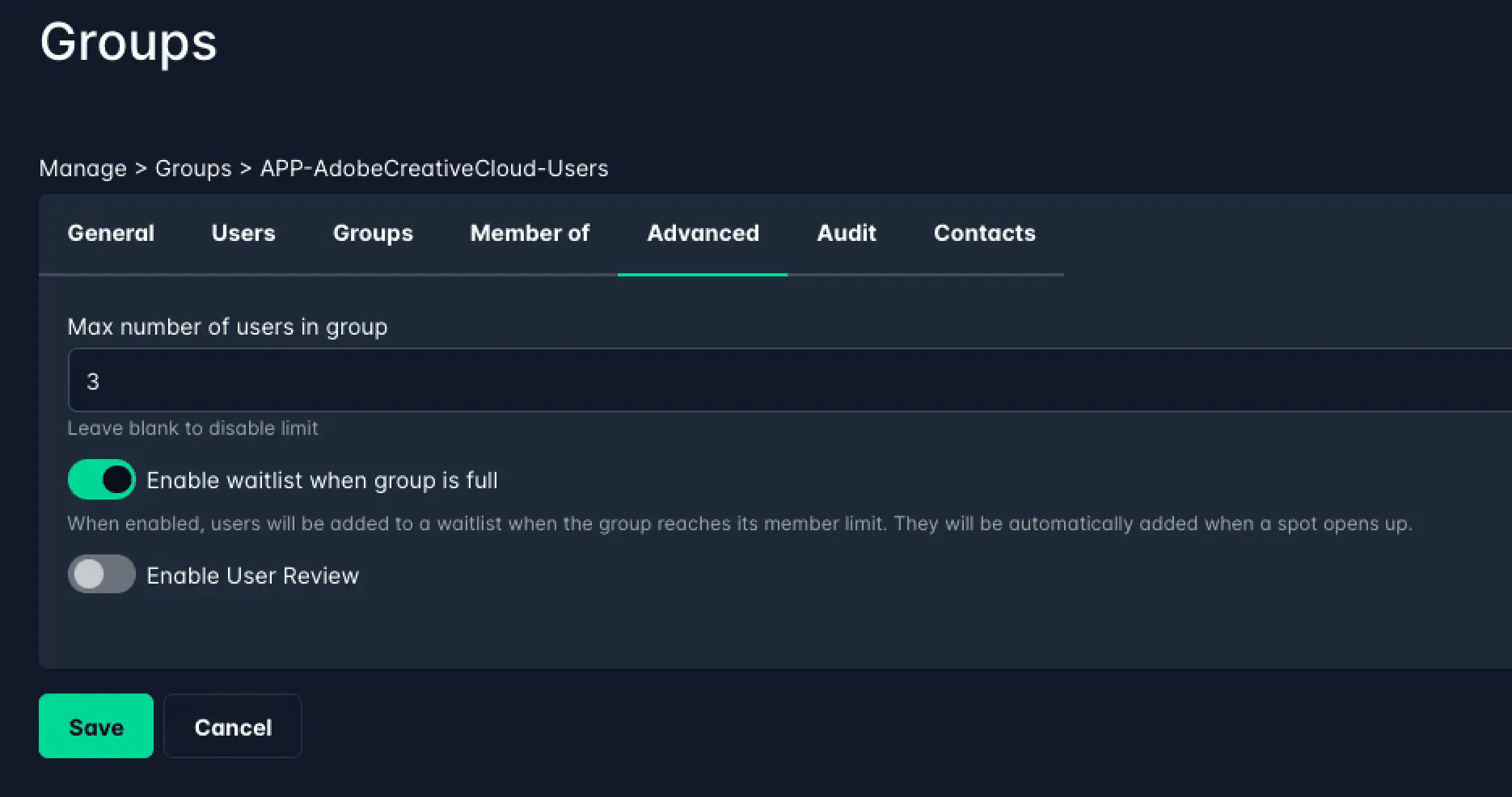
Two settings must be enabled on the group before the waitlist is available:
- Max Members — a member limit must be set on the group (Advanced tab in the group editor).
- Enable waitlist — the waitlist checkbox must be enabled (also in the Advanced tab).
If no member limit is set, the waitlist option is not available.
The Waitlist tab
Once the waitlist is enabled and the group reaches its limit (or already has waitlist entries), a Waitlist tab appears in the group editor.
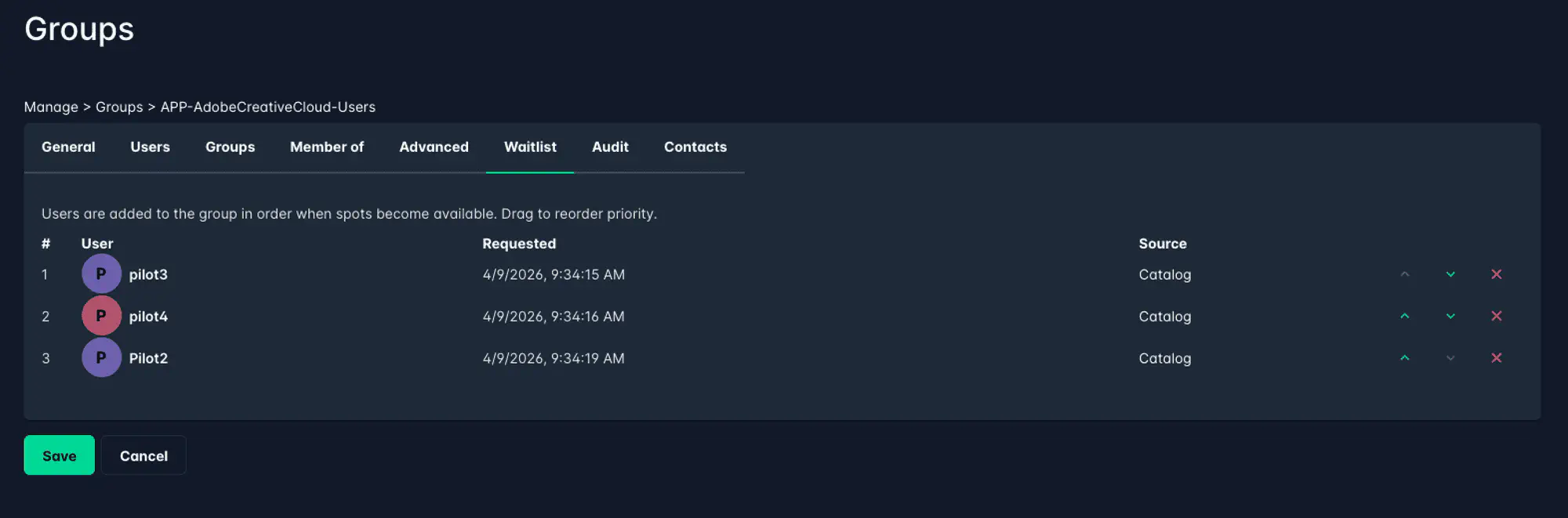
The Waitlist tab shows:
- Position — the user’s place in the queue (1 = next to be promoted)
- User — name and username of the waiting user
- Source — how the user was added to the waitlist (e.g. via Catalog)
- Added — when the user was added to the queue
Reordering the waitlist
Use the up and down arrows on each row to change the queue order. Click Save to apply.
Removing a user from the waitlist
Click the remove icon next to a user to remove them from the queue. If the user joined the waitlist via a Catalog order, that order will automatically be cancelled when they are removed.
Automatic promotion
When a spot opens in the group — because a user was removed or the Max Members limit was increased — the system automatically promotes the first user in the waitlist queue. No manual action is required.
What happens during promotion:
- The user is added to the group and synced to Active Directory / Azure AD.
- The user receives an in-app notification that they have been added to the group.
- If the user joined via Catalog, the associated order is automatically resumed and completed.
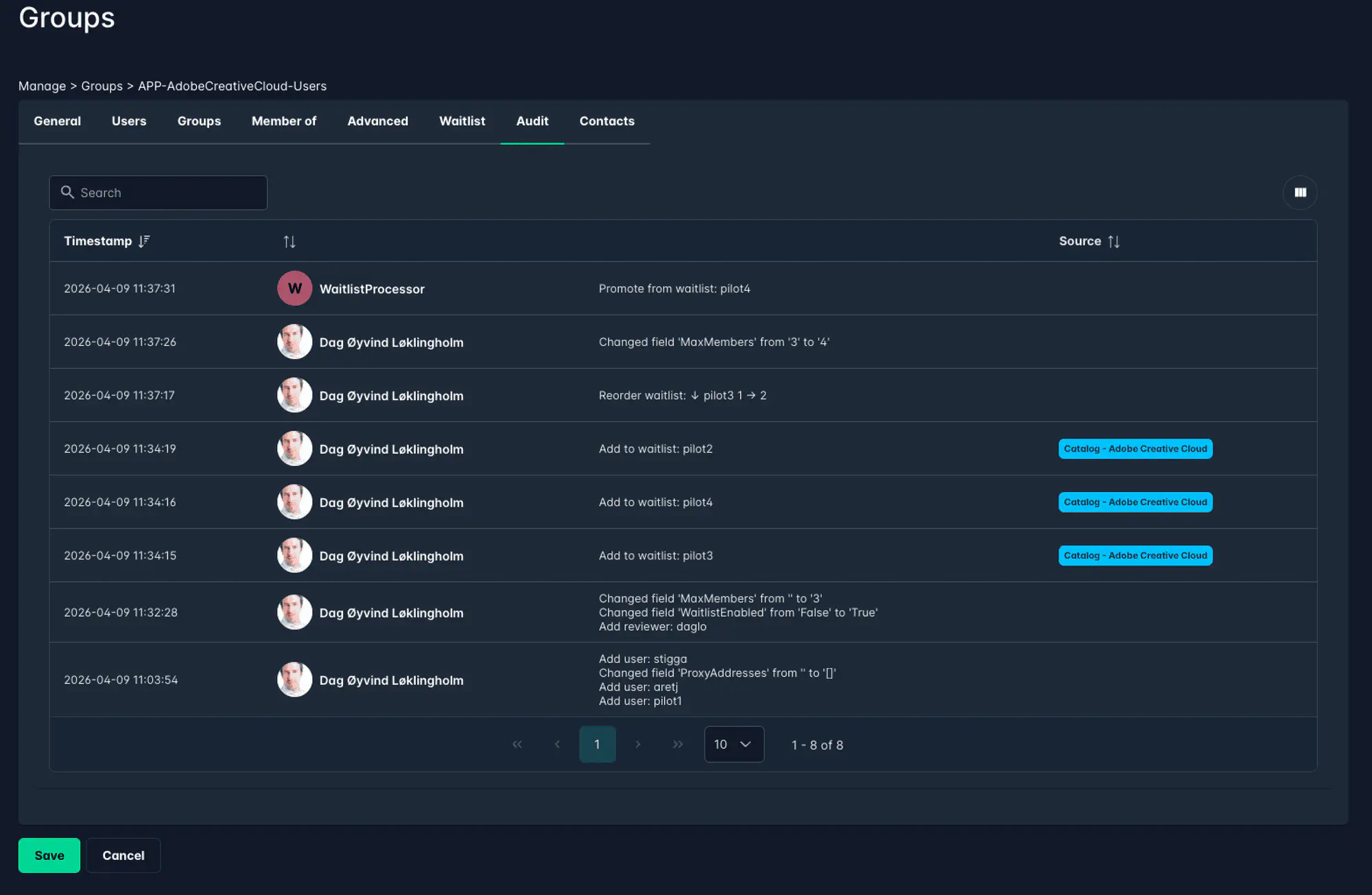
- The promotion is recorded in the group’s Audit log.
Configuring waitlist notifications (resolvers)
When a user joins the waitlist, the system can notify one or more parties that the group is full and action may be required (e.g. purchasing more licenses or removing inactive users). This is configured on the Add user to group action in the Catalog action editor.
You can enable any combination of the three resolver types:
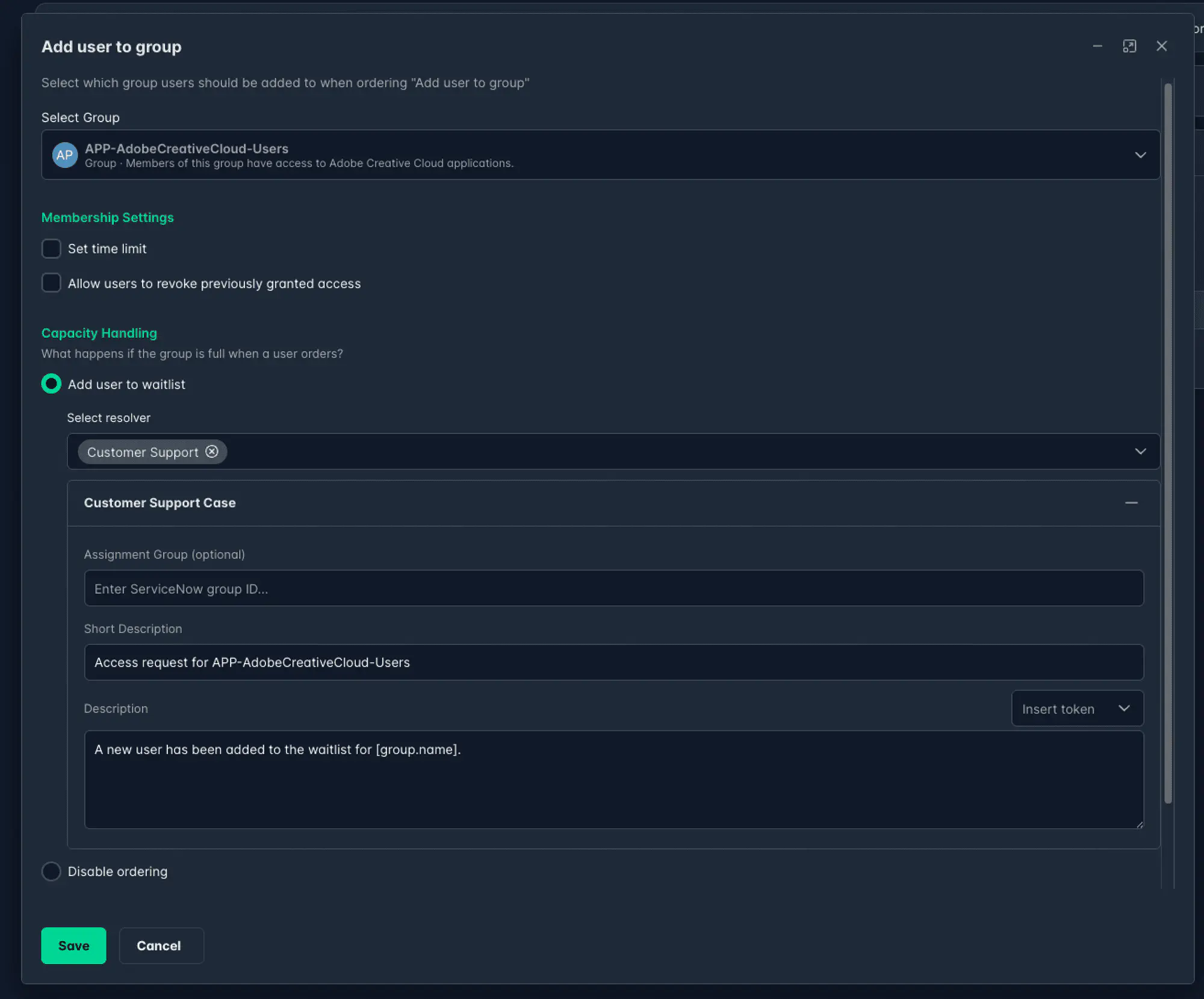
Customer Support
Creates a new case in Cetegra Care when a user joins the waitlist.
| Field | Description |
|---|---|
| Assignment Group ID | Optional. The ServiceNow group the case is assigned to. |
| Short description | The case title. Tokens can be used. |
| Description | The case body. Tokens can be used. |
Specific user
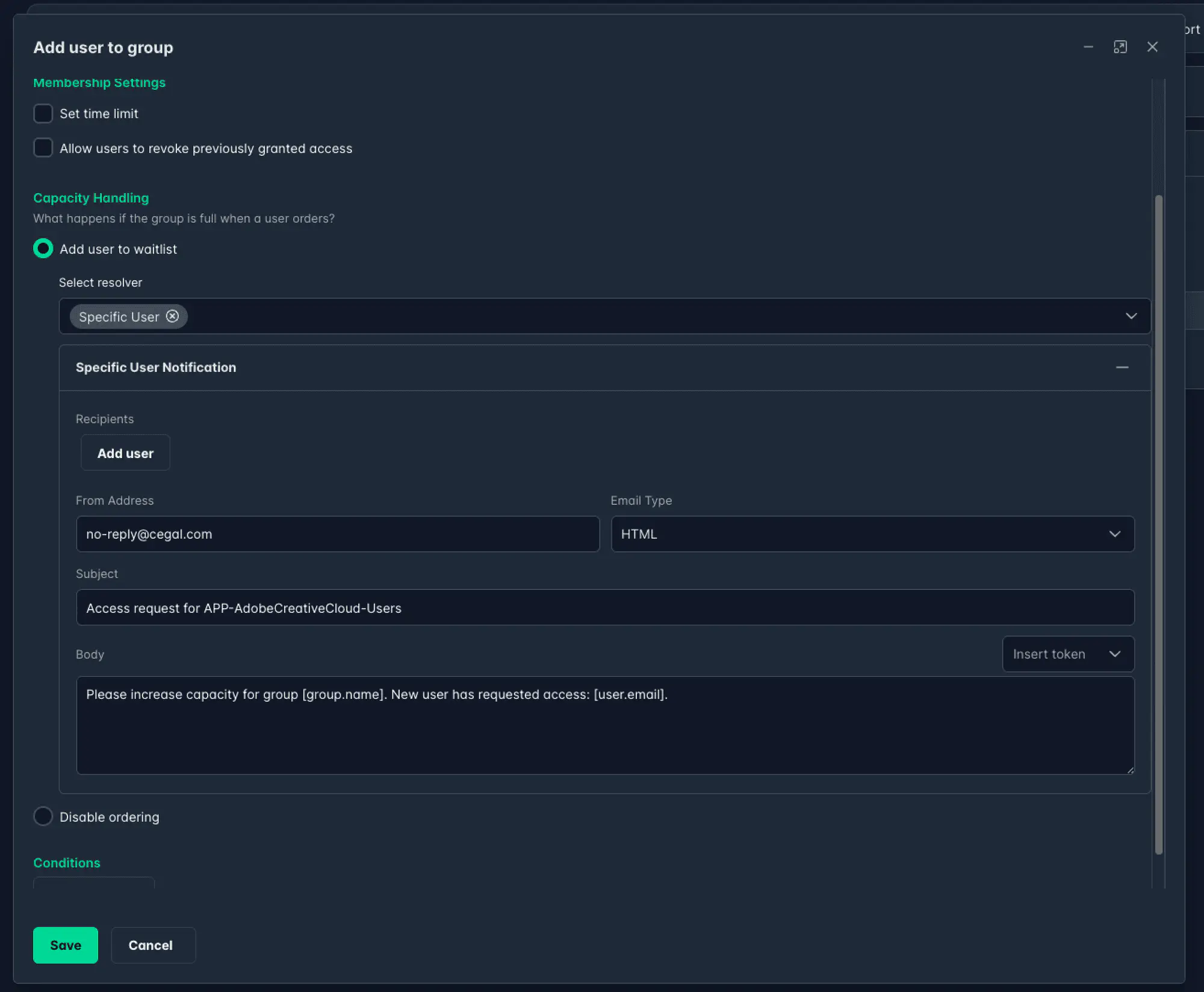
Sends an email to one or more selected users when someone joins the waitlist.
| Field | Description |
|---|---|
| Recipients | One or more users from the tenant’s user directory. |
| From Address | The sender email address (defaults to no-reply@cegal.com). |
| Email Type | HTML or plain text. |
| Subject | Email subject line. Tokens can be used. |
| Body | Email body. Tokens can be used. |
Group reviewers
Sends an email to the group’s configured reviewers when someone joins the waitlist. Reviewers are defined in the Advanced tab of the group editor and are shown read-only here.
| Field | Description |
|---|---|
| Assigned Reviewers | Read-only. Shows the reviewers configured on the group. |
| From Address | The sender email address (defaults to no-reply@cegal.com). |
| Email Type | HTML or plain text. |
| Subject | Email subject line. Tokens can be used. |
| Body | Email body. Tokens can be used. |
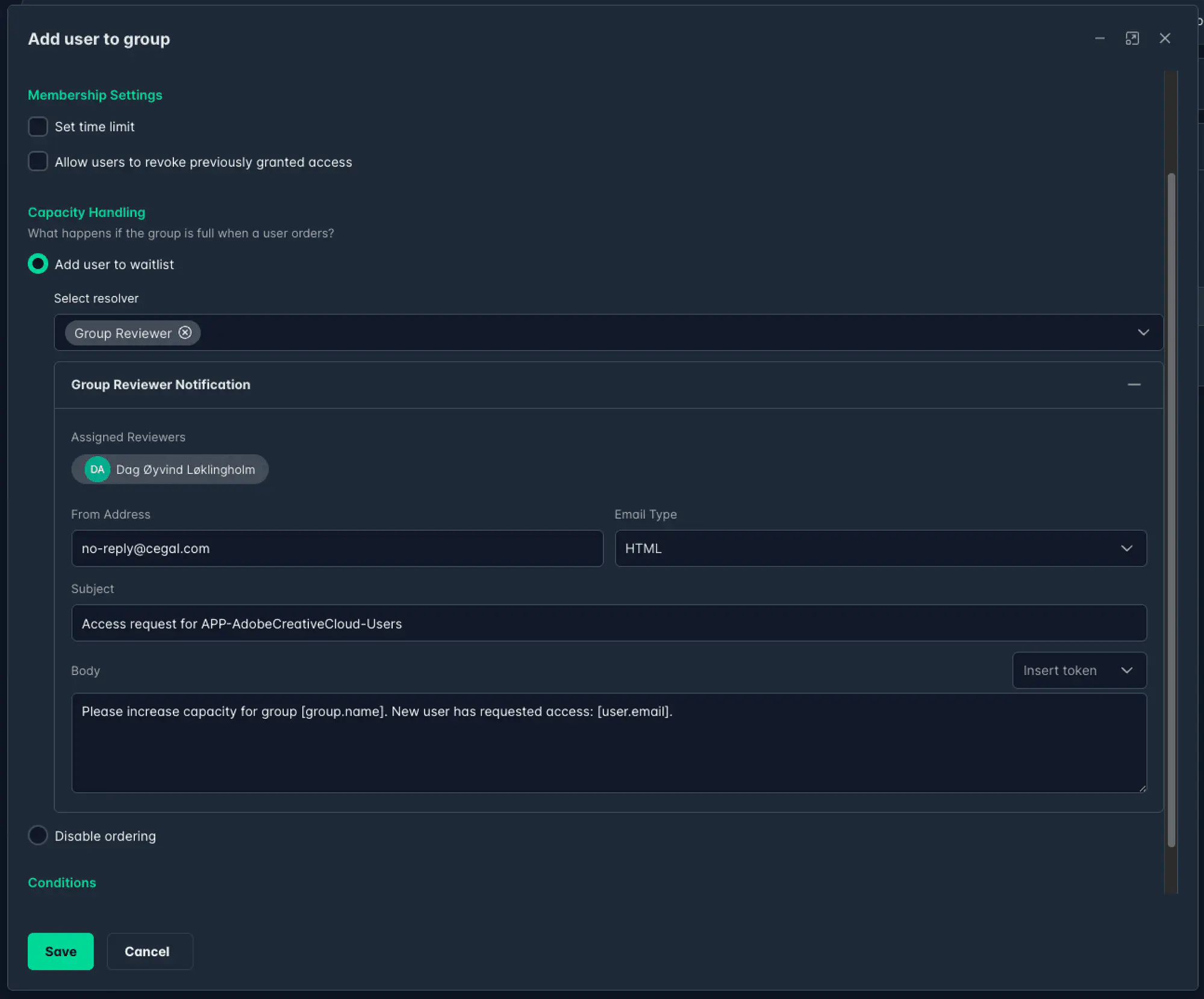
Tokens let you include dynamic values in subjects, bodies, and case descriptions — such as the user’s name, the group name, or the date. Available tokens are shown in the token picker in each field.
Audit log
All waitlist activity is recorded in the group’s Audit tab, including:
- User added to waitlist
- User promoted from waitlist to group
- User removed from waitlist (manually or via order cancellation)
- Waitlist reordered (with names of moved users)
- Waitlist enabled or disabled
Related articles
- Catalog — Actions — configure the waitlist behavior and resolvers on the Add user to group action
- Group Review — group reviewers can see the waitlist and free up capacity by removing existing members
- Catalog — Ordering access (end users) — how the waitlist experience looks for users ordering access